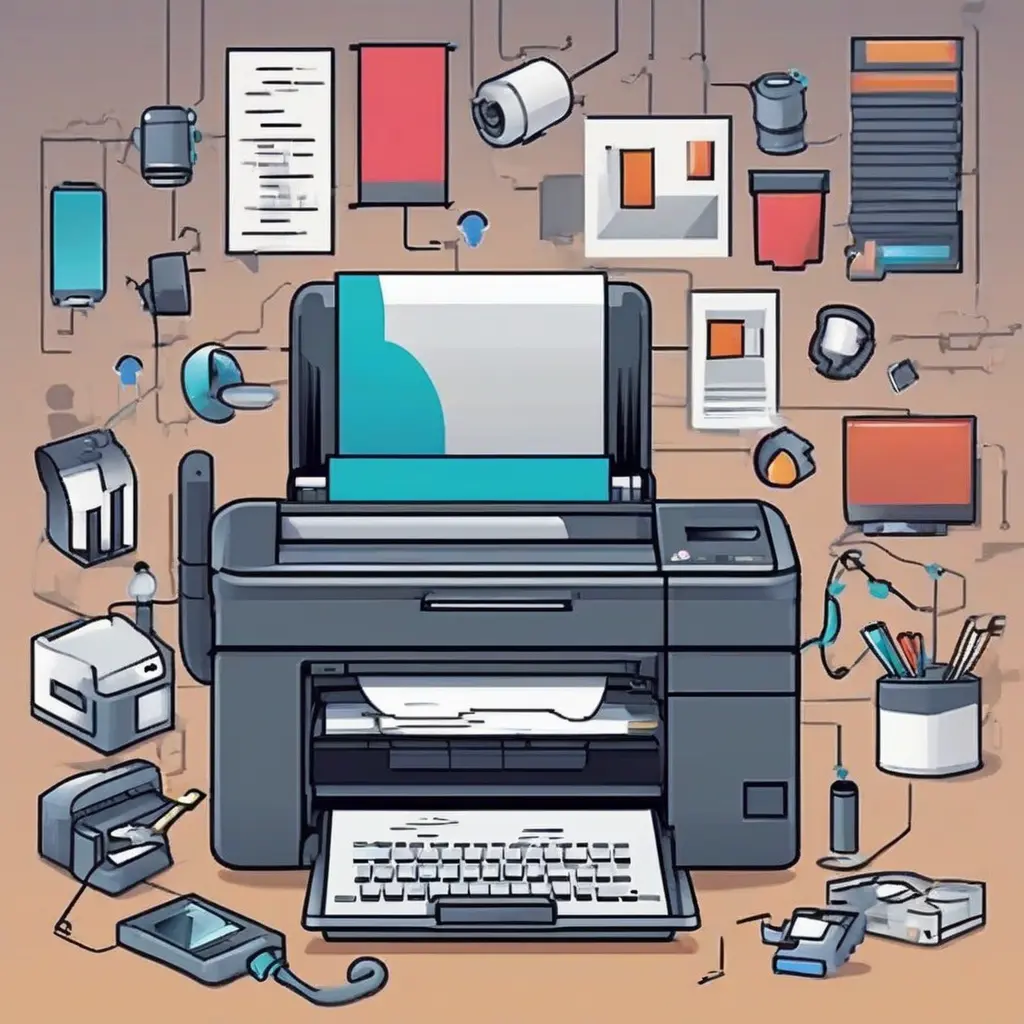
In today’s digital age, printers remain essential for both personal and professional use. However, printer issues can arise unexpectedly, causing frustration and delays. This comprehensive guide explores common printer problems and offers practical solutions to troubleshoot them effectively. By understanding potential issues like connectivity, paper jams, and cartridge errors, users can quickly restore their devices to full functionality. Whether you’re a novice or experienced user, these tips will enhance your troubleshooting skills, making printer upkeep simpler and more efficient.
Understanding Connectivity Issues
One of the most frequent problems users face is connectivity issues with their printers. This can occur with wired and wireless connections alike. For wired printers, ensure that the USB or Ethernet cable is securely connected to both the printer and the computer. If using a wireless printer, check that both the printer and the router are online and connected to the same network. Restarting the printer and router can also resolve temporary connectivity issues, so it’s a good first step in the troubleshooting process.
Troubleshooting Paper Jams
Paper jams can be particularly frustrating for users, as they often interrupt printing tasks suddenly. To troubleshoot paper jams, first, power off the printer to avoid any injury. Next, open the printer’s access doors and gently remove any jammed paper, being careful not to rip it. Check the paper path for any bits left behind, as these can cause further jams. Ensure you are using the correct paper type and size that the printer supports, as improper paper can lead to more jams.
Dealing with Low Ink or Toner
Low ink or toner can severely impact print quality and functionality. Many printers have built-in alerts that notify users about low ink levels. After receiving this notification, it’s crucial to check the ink or toner cartridges. Replace them with manufacturer-recommended cartridges for optimal performance. Periodically cleaning the print heads can also enhance the quality of printed output. Regularly checking and maintaining ink levels ensures your printer functions smoothly and prolongs its lifespan.
Resolving Print Quality Issues
Print quality problems can manifest as streaks, blurriness, or fading. These issues may indicate that the ink cartridges are low or that the print heads are clogged. To address this, perform a print head cleaning using the printer’s software settings. Additionally, using higher-quality paper can improve print output significantly. If print quality does not improve, consider aligning the print heads through the printer settings to ensure optimal function.
Checking for Driver Problems
Printer drivers are essential software components that facilitate communication between your computer and printer. If your printer is not functioning correctly, outdated or corrupted drivers may be the cause. Regularly check the manufacturer’s website for the latest driver updates suitable for your printer model. Installing these updates can resolve many functionality issues and improve compatibility with your operating system.
Managing Network Printers
When using network printers, multiple users may face unique challenges related to connectivity and access. Ensure that the printer is properly configured on the network. This includes verifying IP addresses and checking the printer’s network settings. If issues persist, consider re-installing the printer on each user’s device to reset the connection options. Regularly update the printer firmware, as this can address potential bugs and improve overall network performance.
Addressing Error Messages
Error messages can often be vague, leading to confusion among users. Each printer has specific error codes, and referring to the user manual or the manufacturer’s website can provide clarity. Common error messages might relate to connectivity, low ink, or paper jams. Understanding these codes helps in systematically troubleshooting the issues rather than guessing at potential fixes, which can save time and reduce frustration.
Tips for Regular Printer Maintenance
Regular maintenance is key to preventing many common printer issues. Users should periodically clean their printers, including ink nozzles and print heads, to maintain the quality of printed documents. Additionally, keep the printer in a dust-free environment and ensure that it remains at a stable temperature. Regularly checking and replacing worn components, like rollers or belts, can also contribute to smoother printing operations and extend the printer’s lifespan.
Working with Mobile Printing
With the rise of mobile devices, many printers now support mobile printing options. Ensuring that your printer is compatible with mobile printing protocols, such as AirPrint or Google Cloud Print, enhances flexibility. Install the necessary apps on your mobile device to facilitate printing. Always ensure that both the mobile device and printer are connected to the same wireless network to avoid connectivity issues. Familiarizing yourself with the mobile printing features can streamline the printing process.
Conclusion
Troubleshooting printer issues does not have to be a daunting task. By understanding common problems and applying these practical solutions, users can maintain their printers effectively. Regular maintenance, awareness of connectivity, and familiarity with error codes are essential practices for ensuring optimal printer performance. Armed with this knowledge, users can tackle printer issues with confidence and minimize downtime.