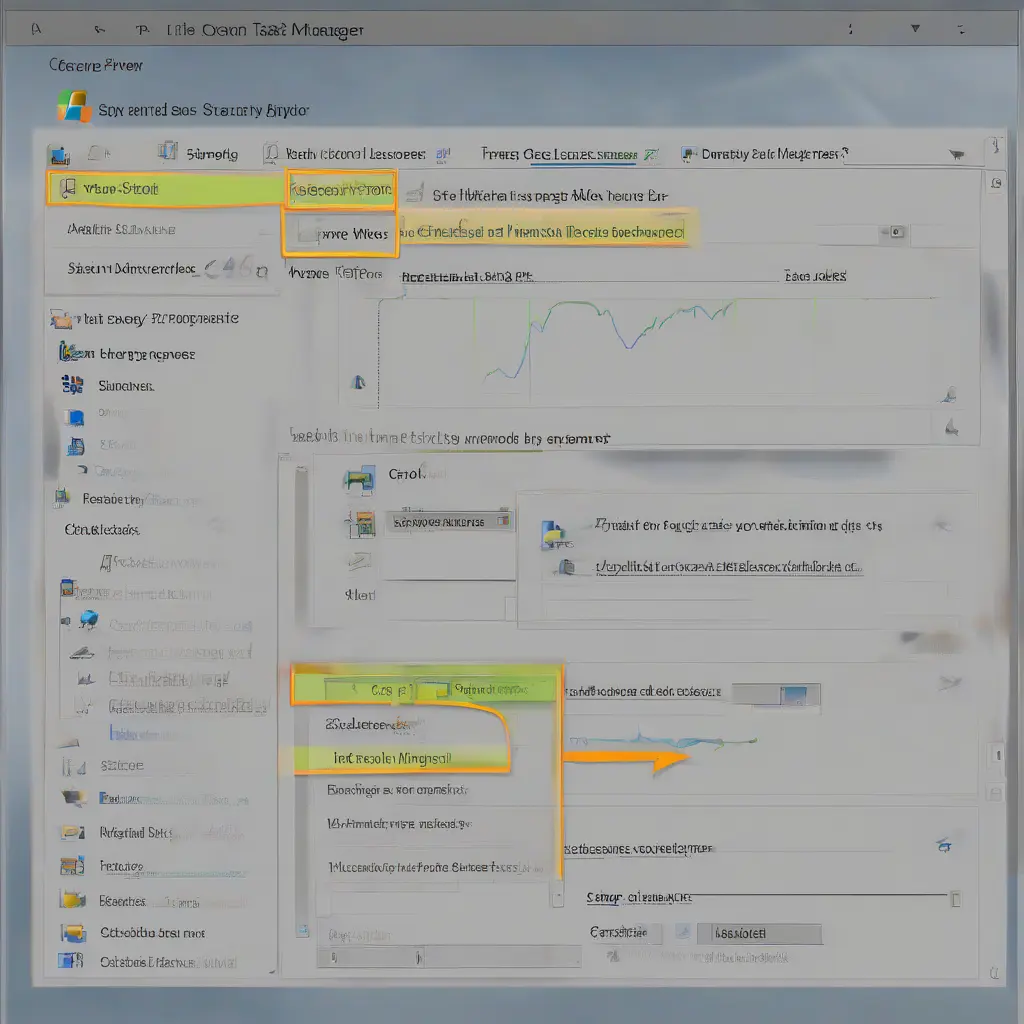
Understanding Task Manager is crucial for anyone looking to optimize their Windows computer’s performance. This powerful tool provides insights into running applications, system resource usage, and real-time performance metrics. Whether you’re troubleshooting slow system behavior or just curious about what processes are consuming your resources, knowing how to navigate Task Manager is invaluable. In this guide, we will explore various features, tips, and best practices for using Task Manager effectively.
What is Task Manager?
Task Manager is a built-in utility in Windows operating systems that enables users to view and manage running applications, services, and system processes. It provides detailed information about CPU and memory usage, running applications, and active network connections. Upon opening Task Manager, users can monitor performance metrics, identify resource hogs, and diagnose issues that may be affecting system stability. By understanding the components of Task Manager, users can make informed decisions to optimize their system’s performance.
How to Open Task Manager in Windows
Opening Task Manager can be done in several straightforward ways. The most common methods include pressing `Ctrl + Shift + Esc`, right-clicking on the taskbar and selecting ‘Task Manager,’ or using the `Windows + X` shortcut to access the power user menu. Additionally, you can type ‘Task Manager’ into the Windows search bar. Each method provides quick access to this essential tool, allowing users to efficiently address any performance-related issues on their systems.
Understanding the User Interface
The user interface of Task Manager consists of several tabs: Processes, Performance, App history, Startup, Users, Details, and Services. Each tab offers different functionalities. The Processes tab shows active applications and background processes, alongside their memory and CPU usage. The Performance tab provides real-time statistics on system resources like CPU, memory, disk, and network usage. Familiarizing yourself with these tabs can help you navigate the tool more effectively and optimize your Windows experience.
Monitoring System Performance
Monitoring system performance is one of Task Manager’s most critical functions. By clicking the Performance tab, users can view real-time statistics that provide insights into CPU load, memory usage, and disk activity. This information can help identify potential bottlenecks that may be slowing down the system. Analyzing these metrics allows users to make informed decisions about resource allocation and troubleshooting, ensuring that their system operates at its best.
Ending Non-Responsive Applications
One of the most practical uses of Task Manager is terminating non-responsive applications. When an application fails to respond, it can be frustrating, but Task Manager provides an easy solution. Under the Processes tab, locate the unresponsive application, select it, and click on ‘End Task.’ This action immediately closes the application, freeing up system resources and allowing users to continue working without restarting their computer, making it an essential troubleshooting tool.
Managing Startup Programs
Managing startup programs is vital for improving boot times and overall system performance. In Task Manager, the Startup tab displays a list of applications set to launch upon system boot. Users can disable unnecessary programs by selecting the application and clicking ‘Disable.’ This action reduces the system’s startup burden, allowing Windows to boot faster and giving users a quicker access experience. Regularly reviewing these programs ensures optimal system performance right from the start.
Analyzing Resource Usage
Analyzing resource usage in Task Manager helps identify applications or processes that consume excessive system resources. In the Processes tab, users can see which applications use the most CPU and memory, providing insights into potential issues. By identifying resource-hungry applications, users can make informed decisions about whether to close, uninstall, or seek alternatives for better efficiency. This proactive approach can lead to enhanced performance and a smoother computing experience.
Using Task Manager to Identify Malware
Task Manager can also be an essential tool for identifying malware or unwanted software running on your system. Suspicious processes often consume excessive resources or have weird names that don’t match known applications. Users should regularly check the Processes tab for any unusual entries. If any unfamiliar processes are detected, further research may be necessary to determine their legitimacy. Detecting potential threats early allows users to take necessary actions to secure their systems effectively.
Exploring the Services Tab
The Services tab in Task Manager provides a comprehensive list of all system services running on your computer. This list can be particularly useful for advanced users who want to manage services that may impact performance. Users can start, stop, or restart services to optimize performance or troubleshoot specific issues. Understanding which services are essential for your system can help you streamline processes and enhance your computer’s overall efficiency.
Using Task Manager for Network Monitoring
Task Manager enables users to monitor network performance through the App history tab, which shows network usage by each application. This feature helps identify which applications are consuming network bandwidth, facilitating better management of your network resources. Additionally, users can check the Performance tab to view real-time network utilization statistics. Being aware of which applications are using your network helps in optimizing connectivity and ensuring a smoother online experience.
Tips for Advanced Task Manager Users
Advanced Task Manager users can benefit from several tips to enhance their experience. For example, right-clicking on a process can reveal a menu with options like ‘Search online’ for detailed information, and ‘Properties’ for further insights about the process. Additionally, utilizing keyboard shortcuts can expedite navigation. Familiarizing yourself with various options and keyboard shortcuts can significantly improve your efficiency while managing system processes.
Conclusion
Effectively utilizing Task Manager can profoundly enhance your Windows experience by optimizing system performance and managing applications. Armed with an understanding of its features, users can swiftly address performance issues, manage startup applications, and monitor resource usage. Exploring Task Manager’s functionalities can lead to better system health, ensuring that your computer runs efficiently and effectively.